USB Debugging Setup Guide
Follow these step-by-step instructions to enable USB debugging on your Android device
USB Debugging Setup Guide
Learn how to enable USB debugging on different Android devices
Step 1 of 6
Step 1: Open Settings
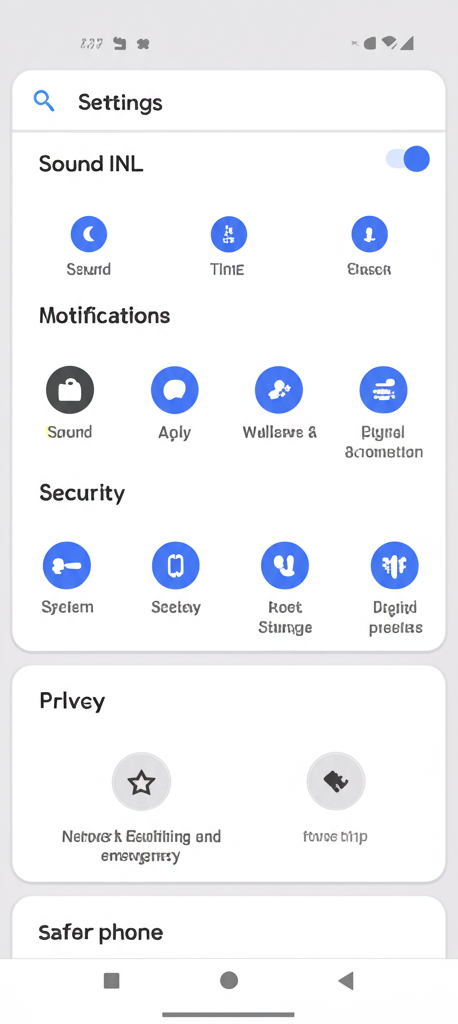
Open the Settings app on your Android device.
Troubleshooting Tips
- If Developer options doesn't appear, try tapping the build number more times
- Some devices may require a different path to find the build number
- Make sure to use a high-quality USB cable that supports data transfer
- Try different USB ports on your computer
- If the USB debugging permission dialog doesn't appear, disconnect and reconnect the USB cable
- Some devices may require you to change the USB connection mode to "File Transfer" or "MTP" first
Note: The exact steps may vary slightly depending on your device manufacturer and Android version. If you're still having trouble, consult your device's documentation or search for specific instructions for your device model.